Why Is My ECG App Not Syncing with My Monitor?
On this page (11 sections)
- Troubleshooting Your ECG App Sync Issues
- Checking Your Bluetooth Connection
- Software Updates: A Crucial Step
- The Power of a Simple Restart
- App-Specific Settings and Permissions
- Clearing App Cache and Data
- Interference from Other Devices
- Is Your Monitor Compatible?
- When to Seek Further Help
- Conclusion
- Frequently Asked Questions
Your ECG app isn’t syncing with your monitor because of common issues like Bluetooth connectivity problems, outdated app versions, or simply needing a quick restart. Don’t worry, this is usually an easy fix! We’ve found that most syncing troubles stem from these simple glitches.
When your ECG app and monitor aren’t talking to each other, it can be frustrating, especially when you want to track your heart health. We understand this can cause a bit of worry. Rest assured, there are several straightforward troubleshooting steps you can take to get them connected again.
- Check your monitor’s Bluetooth is on.
- Make sure your ECG app is updated.
- Try restarting both your monitor and phone.
- Ensure your devices are close to each other.
- Confirm your phone’s operating system is current.
Let’s walk through the most likely reasons your ECG app might be having trouble syncing and what you can do to get things back on track.
Troubleshooting Your ECG App Sync Issues
It’s really frustrating when your ECG app won’t sync with your monitor. You’re trying to keep tabs on your heart health, and suddenly, the data just stops flowing. Don’t worry, this is a common hiccup, and we’ve found that most syncing problems can be resolved with a few straightforward steps. We’ll guide you through the most likely culprits.
Checking Your Bluetooth Connection
Bluetooth is the bridge between your ECG monitor and your smartphone. If that bridge is out, the data can’t cross. Let’s make sure it’s working properly.
Is Bluetooth Turned On for Both Devices?
This might sound obvious, but it’s the most common reason for syncing failures. Your phone and your ECG monitor both need Bluetooth enabled to connect.
For your smartphone, you can usually find the Bluetooth setting in your device’s main settings menu. It’s often near Wi-Fi and mobile data settings. On your ECG monitor, the method to turn on Bluetooth will vary by model. Check your monitor’s user manual if you’re unsure. Many monitors have a specific button or menu option for Bluetooth. On your ECG monitor, you can usually turn on Bluetooth via a specific button or menu option.
Are Your Devices Paired Correctly?
Sometimes, devices can become unpaired or might not have paired correctly in the first place. Your phone needs to “know” your ECG monitor.
Go into your phone’s Bluetooth settings. You should see a list of available devices and a list of paired devices. Make sure your ECG monitor is listed under paired devices. If it’s not there, try searching for new devices and select your monitor when it appears. If it’s listed but shows as “not connected,” try tapping on it to reconnect. Sometimes, you might need to “forget” the device in your phone’s Bluetooth settings and then re-pair it from scratch, following the initial setup instructions for your monitor. If it’s listed but not connected, try to re-pair it from scratch following the initial setup instructions.
Is Your Monitor Within Range?
Bluetooth has a limited range. Think of it like a short-range radio signal. If your devices are too far apart, they can’t communicate effectively.
Keep your smartphone and your ECG monitor close to each other, ideally within 10-20 feet. Obstacles like thick walls or other electronic devices can sometimes interfere with the signal, so try to minimize these. For reliable syncing, it’s best to have them in the same room.
Software Updates: A Crucial Step
Outdated software is a frequent offender when it comes to connectivity issues. Developers frequently release updates to fix bugs and improve performance.
Update Your ECG App
Your ECG app on your smartphone is the primary software managing the data transfer. An old version might have compatibility issues with newer operating system updates on your phone or even firmware updates on your monitor.
Visit your phone’s app store (Google Play Store for Android or the App Store for iOS). Search for your ECG app. If an update is available, you’ll see an “Update” button. Tap it and let the update download and install. We found that keeping the app updated is one of the easiest ways to prevent syncing problems.
Check Your Phone’s Operating System
Just like the app, your phone’s operating system (OS) needs to be up-to-date. A newer OS version might have improved Bluetooth protocols or security features that your older app version isn’t compatible with.
On most Android phones, you can find OS updates in Settings > System > System Update. On iPhones, it’s usually in Settings > General > Software Update. Make sure your phone is connected to Wi-Fi and has sufficient battery charge before starting an OS update. Many experts suggest keeping your phone’s OS updated for optimal performance and security.
Monitor Firmware Updates
Some ECG monitors also have firmware that can be updated. This is less common than app or phone OS updates, but it’s worth checking if your manufacturer provides this option.
Consult your ECG monitor’s user manual or the manufacturer’s website. They will provide specific instructions on how to check for and install firmware updates. This might involve connecting the monitor to a computer or using a specific app function. These updates can sometimes resolve underlying connection bugs.
The Power of a Simple Restart
It’s amazing how often a simple restart can fix a multitude of electronic gremlins. When devices are acting up, refreshing their systems can clear out temporary glitches.
Restart Your Smartphone
Turn your phone completely off, wait about 30 seconds, and then turn it back on. This process clears the phone’s temporary memory (RAM) and can resolve many minor software conflicts that might be interfering with Bluetooth or app functions.
This is a quick and easy step that often gets things working again without needing to dig into complex settings. We recommend trying this first when you encounter syncing issues.
Restart Your ECG Monitor
Similarly, power cycling your ECG monitor can help. If your monitor has a power button, press and hold it until it shuts down. If it has a removable battery, you could temporarily remove it and reinsert it. Always refer to your monitor’s manual for the correct way to restart it.
Restarting both your phone and your monitor in quick succession can sometimes force a fresh connection when they start back up. It’s like a digital handshake.
App-Specific Settings and Permissions
Sometimes, the issue isn’t with the hardware connection but with the permissions your ECG app has on your phone.
Grant Necessary Permissions
Your ECG app needs certain permissions to function correctly. These often include access to Bluetooth and potentially location services (which can sometimes be linked to Bluetooth scanning on certain phone models). Make sure your app has these permissions enabled.
On Android, you can find this in Settings > Apps > your ecg app > Permissions. On iOS, it’s typically in Settings > your ecg app. Look for toggles related to Bluetooth and Location.
Check In-App Sync Settings
Some ECG apps have their own internal settings for syncing. You might need to enable automatic syncing, or there might be an option to manually initiate a sync from within the app itself.
Open your ECG app and look for a “Settings” or “Preferences” menu. Browse through the options to ensure that syncing is enabled and that there aren’t any specific restrictions in place. Some apps also allow you to select which data points you want to sync.
Clearing App Cache and Data
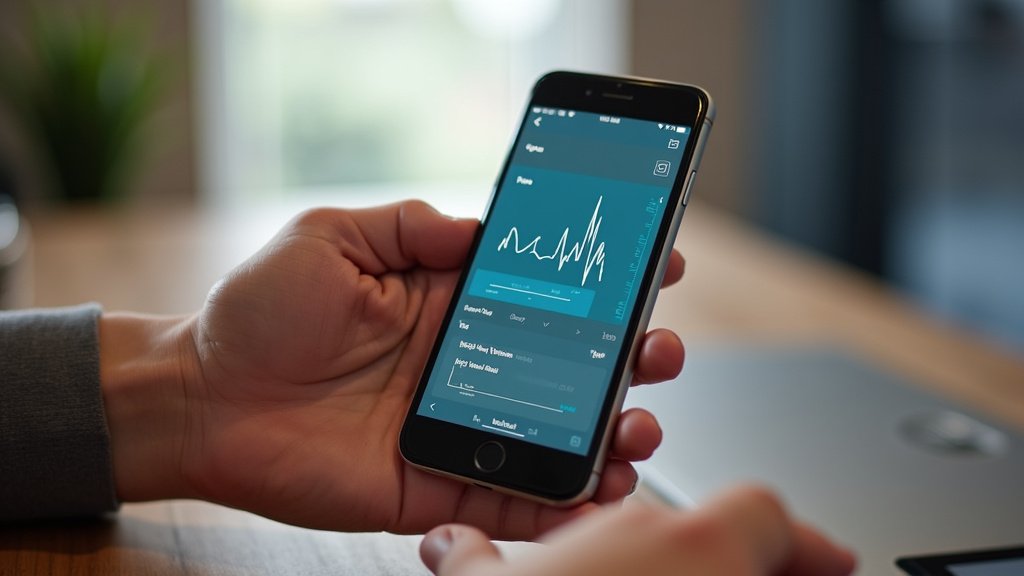
Over time, apps can accumulate temporary files called cache. Sometimes, this cache can become corrupted and cause problems, including syncing issues.
For Android Users: Clear Cache
On Android devices, you can clear an app’s cache without losing your personal data. Go to Settings > Apps > your ecg app > Storage > Clear cache. This removes temporary files but keeps your login information and historical data intact.
If clearing the cache doesn’t work, you might consider clearing the app’s data. However, be aware that this will reset the app to its default state, meaning you’ll likely have to log in again and reconfigure any custom settings. You can find this option in the same Storage menu as “Clear cache.”
For iOS Users: Reinstall the App
iOS doesn’t have a direct “clear cache” option for apps like Android does. The closest equivalent is to uninstall the app and then reinstall it from the App Store. This will delete the app and all its associated data. Make sure you know your login credentials before doing this.
First, delete the app by pressing and holding its icon on your home screen and selecting “Remove App” or “Delete App.” Then, go to the App Store, search for your ECG app, and download it again. This fresh installation can resolve persistent app-related glitches.
Interference from Other Devices
Your electronic environment can sometimes play a role. Other devices can interfere with Bluetooth signals.
Minimize Signal Interference
Other wireless devices, like microwaves, Wi-Fi routers, or even other Bluetooth devices operating very close by, can sometimes disrupt the Bluetooth connection between your monitor and phone. Try to reduce the number of active wireless devices in the immediate vicinity when you’re trying to sync.
For example, if you have multiple Bluetooth headphones or speakers connected to your phone, try disconnecting them temporarily to see if that improves the sync. We found that sometimes, simply moving away from a busy Wi-Fi router can make a difference.
Is Your Monitor Compatible?
Not all ECG monitors are designed to work with every smartphone or app. Compatibility is key.
Verify App and Monitor Compatibility
Double-check that your specific ECG monitor model is officially supported by the ECG app you are using, and see this KardiaMobile connection guide if that is your device. Manufacturers usually list compatible devices on their website or within the app’s description in the app store. If your monitor isn’t on the approved list, it may not be able to sync reliably, if at all.
Conversely, ensure the app version you’re using is designed for your phone’s operating system. For instance, an app built for older Android versions might struggle on the latest OS.
When to Seek Further Help
If you’ve tried all the steps above and your ECG app still won’t sync, it might be time to reach out for direct support.
Contact Manufacturer Support
Your ECG monitor’s manufacturer will have the most in-depth knowledge of their product. They can offer specific troubleshooting advice tailored to your device model.
Look for a “Support,” “Help,” or “Contact Us” section on the manufacturer’s website. They often provide email support, phone numbers, or live chat options. Be prepared to provide them with your monitor’s model number, your smartphone model, and the operating system version you’re using.
Check App Developer Resources
The developer of the ECG app might also be able to help. They can provide guidance on app-specific issues or potential bugs.
Most apps have a support link or email address listed within the app itself or on its app store page. When you contact them, be as detailed as possible about the problem and the steps you’ve already taken. This helps them diagnose the issue more quickly.
Quick Sync Checklist:
- Ensure Bluetooth is ON for both your phone and monitor.
- Confirm your devices are paired correctly in phone settings.
- Keep your phone and monitor close together.
- Update your ECG app and phone’s operating system.
- Restart both your phone and your ECG monitor.
- Verify the app has necessary permissions (like Bluetooth).
Conclusion
It can be concerning when your ECG app and monitor stop syncing, but you’ve now learned that most issues are fixable. We’ve covered common culprits like Bluetooth hiccups, outdated software, and simple device glitches. By systematically checking your Bluetooth connection, ensuring both your app and phone are updated, and giving your devices a quick restart, you’re likely to restore that vital connection. Don’t let a syncing problem keep you from tracking your heart health. If you’ve tried these steps and still face issues, reaching out to the manufacturer or app developer is your next best move.
Frequently Asked Questions
My ECG app says “device not found.” What should I do?
This usually means your phone can’t see your ECG monitor. First, make sure Bluetooth is turned on for both devices and they are close by. If they still don’t connect, try unpairing the monitor from your phone’s Bluetooth settings and then re-pairing them.
How often should I update my ECG app and phone software?
You should update your ECG app whenever an update is available from your app store. It’s also good practice to keep your phone’s operating system updated. These updates often include bug fixes that can prevent syncing problems.
Can other wireless devices interfere with my ECG monitor syncing?
Yes, other wireless devices like microwaves or multiple Bluetooth devices can sometimes interfere. Try to minimize these nearby when you need to sync. Moving your phone and monitor away from potential sources of interference might help.
My ECG monitor is new, but my app won’t connect. Is it a compatibility issue?
It’s possible. Always check the manufacturer’s website or the app store listing to confirm your specific ECG monitor model is compatible with the app you’re using. Sometimes, a device might not be designed to work with certain apps or phone operating systems.
What’s the best way to restart my ECG monitor if it doesn’t have a power button?
If your ECG monitor doesn’t have an obvious power button, consult your user manual for the recommended restart procedure. This might involve removing and reinserting the battery or following a specific button combination. A proper restart can often clear temporary connection issues.