How to Export ECG Data as Pdf?
On this page (3 sections)
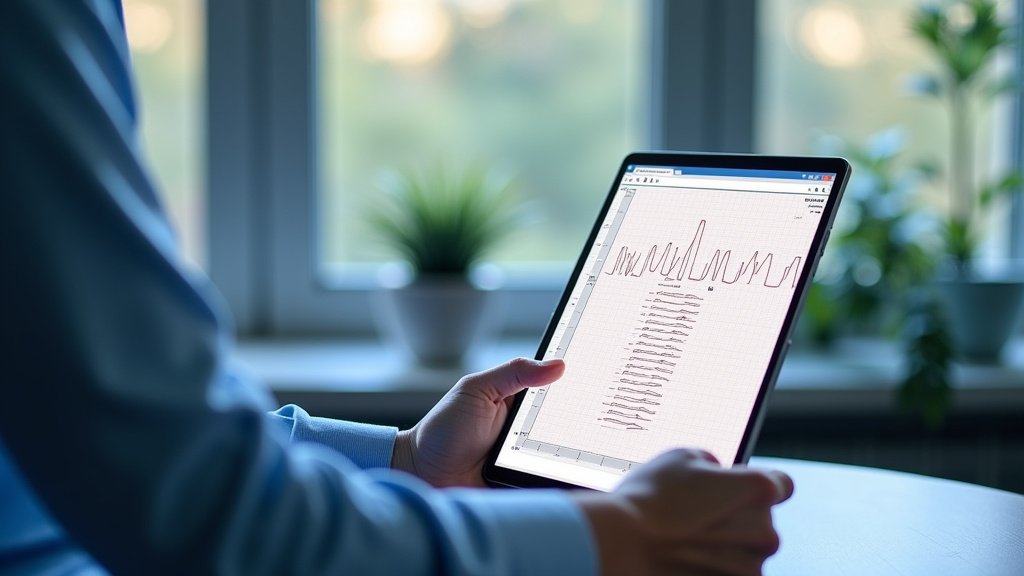
To export ECG data as a PDF, you typically use the export function within your device’s app or software. This lets you save your heart rhythm data in a universally viewable format. Most modern ECG devices, like smartwatches or portable monitors, offer this feature.
Having your ECG data in PDF form is incredibly useful for your health journey. It allows you to easily share results with your doctor. This can be especially helpful for tracking changes over time or getting a second opinion.
- Access your ECG app or device software.
- Locate the specific ECG reading you want to export.
- Find the “Share” or “Export” option.
- Select PDF as your desired format.
- Save or send the PDF file.
Ready to get your ECG data in a format you can easily share? Let’s walk through exactly how to make that happen, step by step.
Getting Your ECG Data into a Shareable PDF
You’ve taken an ECG reading, and now you want to save it as a PDF. This process is usually quite straightforward. It primarily involves using the app or software that came with your ECG device. Think of it like saving a document on your computer; you just need to find the right button.
Most modern ECG devices, from smartwatches to portable monitors, are designed with this functionality in mind. They understand that you might need to share your heart data with your doctor or keep a personal record. That’s why exporting to PDF is often a built-in feature, making your life a little easier.
Understanding Your ECG Device and Its App
Before you can export anything, you need to know your tool. Every ECG device, whether it’s an Apple Watch, a Fitbit, a KardiaMobile, or another brand, has its own dedicated application. This app is your central hub for viewing, analyzing, and ultimately exporting your ECG data.
Make sure your device is paired correctly with its app on your smartphone or tablet. The app is where all your readings are stored and displayed. Without it, you won’t be able to access your data, let alone export it.
Where Does Your ECG Data Live?
Your ECG readings are usually stored within the app itself, often in a section labeled “History,” “All Readings,” or “Records.” Some apps might even integrate with your phone’s native health app, like Apple Health on iPhones. It’s a good idea to familiarize yourself with this section so you know where to find past measurements.
We found that understanding the app’s layout makes the whole export process much smoother. It’s like knowing where your favorite book is on a shelf; once you know the spot, finding it again is simple.
Step-by-Step Guide for Popular Devices
While the exact steps might vary slightly, the general idea for exporting an ECG to PDF remains consistent across most devices. We’ll walk through some common examples to give you a clear picture.
Apple Watch ECG Export
If you own an Apple Watch Series 4 or newer, you can take ECGs directly from your wrist. Your readings are stored in the Apple Health app on your iPhone. Here’s how to get them into a PDF:
- Open the Health app on your iPhone.
- Tap “Browse” at the bottom of the screen.
- Scroll down and select “Heart,” then “Electrocardiograms (ECG).”
- Tap the specific ECG reading you wish to export.
- On the next screen, scroll down and look for the “Export PDF for Your Doctor” option.
- Tap it, and a PDF will generate. You can then use the share sheet to email, message, or save the PDF to your files.
It’s designed to be intuitive, knowing that sharing with a healthcare provider is a primary use case (Apple Support).
KardiaMobile ECG Export (AliveCor)
KardiaMobile devices are popular for their portability. Their companion app, Kardia, stores all your recordings. Here’s how to export a PDF:
- Launch the Kardia app on your smartphone or tablet.
- Navigate to the “History” tab at the bottom.
- Select the ECG recording you want to export.
- Once the reading is open, look for a share icon (often a square with an arrow pointing up) or a “Share” or “Export” button.
- Choose “Share as PDF” or “Email PDF Report.”
- You can then send the PDF to your doctor, yourself, or save it to a cloud service. Many users appreciate how quickly this process works.
Other Smartwatches and Portable ECG Monitors
For brands like Fitbit, Samsung Galaxy Watch, or other dedicated portable ECG monitors, the process is quite similar:
- Open the associated health or ECG app for your device.
- Find your “Recordings,” “History,” or “Measurements” section.
- Select the specific ECG reading you need.
- Look for a “Share,” “Export,” or “Print” icon/button. It might be in a menu represented by three dots or lines.
- Choose “PDF” as the format for sharing or saving.
- Follow the prompts to save the file to your device or send it via email/messaging.
If you can’t find it right away, don’t worry. Sometimes these options are tucked away in a “More” menu or a settings gear icon within the individual reading’s view. A quick glance at your device’s user manual, or a search on their support website, can also be very helpful.
Troubleshooting Common Export Issues
Sometimes technology doesn’t play nice. If you’re having trouble exporting your ECG data, don’t throw your phone across the room just yet! There are a few common reasons why this might happen, and some simple fixes.
App or Device Glitches
Is your app acting a little strange? Freezing? Not responding? This happens. We found that a simple fix for many tech hiccups is often the best:
- Restart the app: Close it completely and open it again.
- Restart your device: Turn your smartphone or tablet off and then back on. This clears out temporary software issues.
- Update the app: Make sure your ECG app is the latest version. Developers frequently release updates that fix bugs and improve functionality. Check your device’s app store.
Outdated software can often cause unexpected problems, so keeping your apps current is a good habit (Mayo Clinic).
Connectivity Problems
While exporting a PDF usually happens locally on your device, some apps might require an internet connection to process or upload your heart data before generating the report. Make sure your phone or tablet has a stable Wi-Fi or cellular connection.
If your device needs to sync data with a cloud service first, a poor connection could delay or prevent the export. It’s like trying to mail a letter without a stamp; it just won’t go anywhere.
Insufficient Storage Space
Although ECG PDFs are usually small files, if your phone or tablet is critically low on storage, it might prevent new files from being saved. Check your device’s storage settings to ensure you have enough free space.
A simple way to check is to go to your phone’s settings, then “Storage.” If it’s nearly full, try deleting some old photos or unused apps.
When to Use Your Exported ECG PDF
Having your ECG data in PDF form isn’t just about showing off; it’s a vital tool for managing your health. But when exactly should you be using it?
Sharing with Your Doctor
This is perhaps the most important reason. When you have an appointment, you can easily email the PDF ahead of time or show it to them on your phone. It gives your doctor a clear, official-looking document of your heart activity.
Many doctors appreciate having this data. It helps them see patterns or specific events that might not occur during a standard in-office ECG (American Heart Association).
Personal Health Records
Keeping a personal file of your health data is a smart move. A PDF of your ECG can be part of this record. It’s a great way to track changes over time, especially if you have a known heart condition or are monitoring symptoms.
Imagine having a timeline of your heart’s activity at your fingertips. It can be very reassuring to see consistency, or alert you to subtle changes that need attention.
Second Opinions or Specialist Consultations
If you’re seeking a second opinion or seeing a new cardiologist, having your past ECGs in an easily shareable format is a huge advantage. It saves time and ensures they have all the relevant information without needing to re-do tests.
It’s like bringing your medical homework to a new teacher; it gives them a good starting point.
Your ECG Export Checklist
To make sure you’re ready to export your ECG data whenever you need to, keep this quick checklist in mind:
- Confirm your ECG device is charged and working.
- Ensure your smartphone or tablet is updated.
- Check that your ECG app is the latest version.
- Verify your device has enough storage space.
- Know where to find your ECG readings within the app.
- Understand the “Share” or “Export” options for your specific device.
By following these steps, you’ll be able to quickly and efficiently export your ECG data as a PDF. This empowers you to take a more active role in managing your heart health and communicating effectively with your healthcare providers. You’ve got this!
Conclusion
You now have a clear roadmap for exporting your ECG data as a PDF. We covered everything from understanding your device’s app to troubleshooting common issues. Being able to easily access and share your heart health information is a powerful step in taking control of your well-being. This simple process allows you to keep accurate records and communicate effectively with your doctor.
So, go ahead and practice exporting an ECG from your device. You’ll be well-prepared to share your heart data confidently whenever you need to.
Frequently Asked Questions
Can I export all my past ECG readings at once?
Most apps allow you to export individual ECG readings. Some advanced apps or subscriptions might offer a feature to export a date range or multiple readings simultaneously. We recommend checking your specific app’s settings or support documentation for bulk export options.
Is it safe to email my ECG PDF to my doctor?
Yes, emailing your ECG PDF to your doctor is generally considered safe, especially if you use a secure email service. Many healthcare providers also offer patient portals where you can securely upload health documents directly. Always confirm your doctor’s preferred method for receiving medical files.
What if my ECG device doesn’t have an “Export to PDF” option?
If you don’t see a direct “Export to PDF” option, look for a “Print” option within the app. You can often “print” to a PDF by selecting a PDF printer or “Save as PDF” from your phone’s print menu. If that doesn’t work, you might have to take screenshots of the reading and compile them into a PDF using a separate app.
Can I view an ECG PDF on any device?
Absolutely. PDFs are a universal file format. You can open and view your ECG PDF on almost any smartphone, tablet, computer, or e-reader, as long as it has a PDF viewer installed. This makes it very convenient for sharing and record-keeping.
Do I need a special app to open and read ECG PDFs?
No, you typically don’t need a special app. Most modern devices have built-in PDF viewers. If you encounter an issue, you can download a free PDF reader app like Adobe Acrobat Reader or Google PDF Viewer, which are readily available for all operating systems.