How to Use ECG on Apple Watch Series 11
Apple Watch 11 ECG works through the ECG app: set it up in the Health app, open ECG on your watch, rest your arm, and hold the Digital Crown for 30 seconds.
On this page (9 sections)
- What do you need before using Apple Watch 11 ECG?
- How do you set up ECG on Apple Watch Series 11?
- How do you record an ECG on Apple Watch 11?
- What do the Apple Watch 11 ECG results mean?
- How can you improve an Apple Watch 11 ECG recording?
- Can a replacement band affect Apple Watch ECG?
- How do you view and share an Apple Watch ECG?
- When should you seek medical help?
- Is Apple Watch Series 11 ECG right for you?
Apple Watch 11 ECG works through the ECG app: set it up in the Health app, open ECG on your watch, rest your arm, and hold the Digital Crown for 30 seconds. For the older Series 3 model, see Series 3 ECG availability.
The app records a single-lead electrocardiogram and classifies the result.
The ECG app can help you record a heart rhythm when you feel symptoms such as a fast or irregular heartbeat. It is a wellness and monitoring feature, not a replacement for medical care or a full clinical ECG.
What do you need before using Apple Watch 11 ECG?
You need an Apple Watch Series 11, a paired iPhone, the latest compatible software, and access to the ECG feature in your region. For another model’s regional ECG availability, see OnePlus Watch 3 ECG availability.
Apple also requires users to meet its age and account requirements before the app can be enabled.
Your watch should fit securely enough to keep its sensors against your skin. Clean, dry skin helps reduce interruptions caused by poor contact.
Apple explains the feature and its limits in its official guide to taking an ECG with the ECG app. Check Apple's current requirements if the ECG app does not appear on your watch.
How do you set up ECG on Apple Watch Series 11?
Set up ECG from the Health app on your iPhone before trying to record a reading. The setup flow checks eligibility, explains the feature, and adds the ECG app to your watch.
- Open the Health app on your iPhone.
- Tap your profile picture, then choose Health Details or Set Up the ECG App, depending on the screen shown.
- Follow the instructions and read the ECG information.
- Open the ECG app on Apple Watch Series 11 when setup finishes.
- Complete any remaining prompts on the watch or iPhone.
If you have used ECG on another Apple Watch, the steps may look familiar. Our guide to apple watch series 10 ecg covers the same general workflow on Series 10.
How do you record an ECG on Apple Watch 11?
Open the ECG app, place your arm on a table or in your lap, and lightly hold the Digital Crown with a finger from your opposite hand. Keep still until the 30-second recording ends.
Follow these steps:
- Open the ECG app on Apple Watch Series 11.
- Rest the arm wearing the watch on a table or your lap.
- Touch the Digital Crown with a finger from your opposite hand.
- Keep your finger in place without pressing hard.
- Stay relaxed and still while the countdown runs.
- Tap Done when the recording finishes.
The watch uses the contact between your finger and the Digital Crown to complete the circuit across your chest. You do not need to press the crown or move your finger during the recording.
For a more general walkthrough, read How to Record an EKG on Apple Watch: Easy Guide. Apple uses ECG and EKG for the same type of heart rhythm recording.
What do the Apple Watch 11 ECG results mean?
The ECG app may classify a recording as sinus rhythm, atrial fibrillation, inconclusive, or poor recording. A classification is a screening result, so it does not confirm or rule out every heart problem.
Sinus rhythm
Sinus rhythm means the recording did not show atrial fibrillation during that reading. It does not mean every aspect of your heart is normal or that you cannot have symptoms later.
Save the result in the Health app and note how you felt when you recorded it. A normal reading during symptoms still deserves attention if the symptoms continue or return.
Atrial fibrillation
An atrial fibrillation result means the recording showed a pattern that may be consistent with AFib. The app cannot diagnose every rhythm problem, and a clinician should review concerns or repeated results.
If you have not been diagnosed with AFib, contact a health professional about an AFib classification. If you already have a care plan, follow the instructions from your clinician.
Inconclusive
An inconclusive result means the app could not classify the recording. This can happen when the heart rate is outside the app's expected range or when the rhythm does not fit the available classifications.
Rest for a few minutes and try again if you feel well. Repeated inconclusive results, symptoms, or concerns should be discussed with a health professional.
Poor recording
A poor recording often means the watch did not get a clear enough signal. Check that the back of the watch and your skin are clean and dry, rest your arm, and avoid talking or moving.
Do not keep repeating readings if you feel seriously unwell. Emergency symptoms need immediate medical attention.
How can you improve an Apple Watch 11 ECG recording?
Keep your arm supported and your finger lightly on the Digital Crown for the full recording. Movement, loose contact, cold skin, moisture, and nearby electrical interference can make a reading harder to classify.
Try these adjustments:
- Sit down before opening the ECG app.
- Rest your forearm on a stable surface.
- Keep both feet still and avoid talking.
- Make sure the watch is snug but comfortable.
- Dry your skin and the watch before recording.
- Touch the Digital Crown with the opposite hand.
- Avoid recording while exercising or moving.
A watch band cannot create a better ECG signal by itself. Fit and skin contact matter more than the band material.
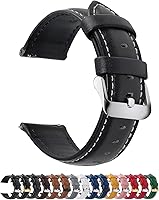
The Fullmosa band comes in several widths and includes a spring bar tool. Its stated compatibility focuses on Samsung, Garmin, Huawei, Amazfit, Fossil, and other spring-bar watches, so confirm your watch model before buying.
Can a replacement band affect Apple Watch ECG?
A replacement band should not be treated as an ECG upgrade. Apple Watch Series 11 records through its watch sensors and the Digital Crown, while a band mainly affects how securely and comfortably the watch sits on your wrist.
If your band lets the watch move during a recording, a properly fitted option may help you keep the watch in place. It still cannot correct a medical problem or change the ECG app's classification.
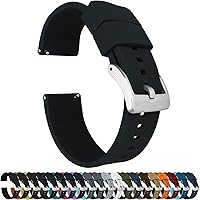
BARTON's Elite Silicone Watch Bands use quick-release spring bars and come in multiple widths. The correct width depends on the watch's lug spacing, so do not assume a spring-bar band will attach to an Apple Watch.
For older Apple Watch ECG instructions, see apple watch series 5 ecg and apple watch series 8 ecg. The app steps can differ by software version, but the basic recording position remains similar.
How do you view and share an Apple Watch ECG?
Open the Health app on the paired iPhone to review saved ECG recordings. Look under Heart, then Electrocardiograms, where you can open a result and view its classification and waveform.
To share a recording:
- Open the Health app.
- Tap Browse, then Heart.
- Choose Electrocardiograms.
- Select the recording you want to review.
- Tap Export a PDF for Your Doctor.
- Save or share the PDF through an available option.
Add the date, time, and symptoms to your own notes when useful. A clinician may need that context alongside the waveform.
When should you seek medical help?
Call emergency services for severe or sudden symptoms, even if an Apple Watch ECG looks normal. Chest pain, pressure, trouble breathing, fainting, severe weakness, or symptoms that feel urgent should not wait for another reading.
Contact a health professional about repeated abnormal classifications, frequent palpitations, ongoing dizziness, or symptoms that return. Do not change medicine or treatment based only on an Apple Watch result.
An ECG app cannot detect every heart condition. It also does not replace a full clinical ECG, examination, or advice from a qualified professional.
Is Apple Watch Series 11 ECG right for you?
Apple Watch 11 ECG is useful when you want to record a short heart rhythm strip from your wrist and save the result in the Health app. For a broader smartwatch comparison, see Amazfit Balance vs Balance 2.
For another wrist ECG option, see the Google Pixel Watch 2 ECG guide.
The key is to use it while sitting still, follow the recording steps, and treat the result as information to discuss when needed.
Pick the built-in ECG app if you already use Apple Watch Series 11 and want an on-demand recording. If you are comparing other devices, start with Best Apple Watch Alternative For ECG or Best Cheap Alternative To Apple Watch ECG, then check whether the device is available and supported where you live.
Frequently asked questions
Does Apple Watch Series 11 have an ECG app?
Yes, Apple Watch Series 11 supports the ECG app where the feature is available and when the watch and iPhone meet Apple's requirements. Set it up in the Health app, then record a reading by opening ECG and holding the Digital Crown for about 30 seconds.
How long does an Apple Watch 11 ECG recording take?
An Apple Watch 11 ECG recording takes about 30 seconds. Sit still, rest your arm on a table or your lap, and keep the finger of your opposite hand on the Digital Crown until the recording finishes.
Can Apple Watch ECG detect a heart attack?
No. Apple Watch ECG is not designed to detect a heart attack, blood clot, stroke, or other heart conditions.
If you have chest pain, trouble breathing, fainting, or another emergency symptom, contact emergency services instead of waiting for an ECG result.
Where can you find Apple Watch ECG results?
Your Apple Watch ECG results appear in the Health app on the paired iPhone under Heart and Electrocardiograms. You can review the classification, see the waveform, and export a PDF if you need to share the recording with a health professional.