How to Update Withings ScanWatch 2
To update a Withings ScanWatch 2, open the Withings app, keep Bluetooth on, keep the watch charged and nearby, and approve the firmware update when it appears. Let the watch stay connected until the install finishes and it restarts.
On this page (10 sections)
- Why does a Withings ScanWatch 2 update not show up?
- How do you install a Withings ScanWatch 2 update step by step?
- How much charge does the watch need before you update it?
- What should you do when the update stalls during download?
- What should you do if the firmware install fails to finish?
- When is a reset the right fix for an update problem?
- How do you check that the update worked after it restarts?
- Which accessories help while you update and wear the watch?
- What mistakes should you avoid during a ScanWatch 2 update?
- How do you keep future Withings ScanWatch 2 updates smooth?
To update a Withings ScanWatch 2, open the Withings app, keep Bluetooth on, keep the watch charged and nearby, and approve the firmware update when it appears. Let the watch stay connected until the install finishes and it restarts.
This update works through the app, so the phone downloads the file and sends it to the watch.
You do not update this watch from a computer cable or web browser. The app checks the version, downloads the file, then hands it to the watch for the final install.
Why does a Withings ScanWatch 2 update not show up?
The update may not show up if the app is closed, Bluetooth is off, or the watch is not paired in the app. It can also be delayed if the battery is low.
Open the Withings app and wait for the watch to appear on the home screen. If it does not appear, turn Bluetooth off and on, then reopen the app.
Give the app a minute to sync after you reopen it. Some updates roll out in stages, so another owner may see a new version before you do.
If you are setting the watch up for the first time, finish the withings scanwatch 2 setup before you hunt for firmware. Setup creates the pairing that the update needs.
How do you install a Withings ScanWatch 2 update step by step?
Install the update from inside the Withings app while the watch stays paired and connected. Exact menu names can vary by app version, but the order stays the same.
First, charge the watch and keep your phone nearby. Second, open the app and confirm the ScanWatch 2 shows as connected.
Third, open the device section and look for a firmware or update section.
Tap the update when it appears, then approve the download and wait for the progress bar to finish. Do not close the app during this stage, because the file still needs to move from phone to watch.
After the download, leave the watch face up, keep the phone within a few feet, and let it restart on its own. Avoid pressing buttons or starting an ECG reading until the watch returns to its normal screen.
How much charge does the watch need before you update it?
Charge the watch before you start, because a low battery is a common reason an install stops. A watch that is nearly empty may refuse the update or lose contact partway through.
Use the charger that came with the watch or a compatible cable made for the ScanWatch 2. Place the watch on the charger and confirm it is drawing power before you open the app.
Our guide to how to charge a withings scanwatch covers the charging cues in more detail.
The TUSITA cable below is made for the ScanWatch 2 and ScanWatch Light, with a 1 m length and USB connection. It can be useful as a spare for a desk, bag, or bedside table.
TUSITA says the cable uses ABS and PVC materials with a copper wire, and it includes over current and over voltage protection. Spare cables are worth having because the original charger is easy to leave in another room.
What should you do when the update stalls during download?
Keep the app open, stay near the watch, and wait longer than you expect before you restart anything. A progress bar that moves slowly is often still working.
Check that your phone has not locked, that Bluetooth is still on, and that the watch has not moved out of range. Moving between rooms during the download can break the link.
If the bar stops for a long time, close the app fully and reopen it. The app should check again and resume or restart the download.
Try a different network if your home Wi-Fi is crowded. What matters most is a steady link between phone and watch.
What should you do if the firmware install fails to finish?
Do not remove the watch from the app or start a factory reset right away. A failed install usually needs a charged battery, a fresh app session, and a clean Bluetooth link first.
Confirm the watch is charged, then close the Withings app and reopen it. Let the watch sync again, then look for the update prompt a second time.
Restart your phone if the app still shows an error. A phone restart clears stuck Bluetooth sessions that can block a file transfer.
If the watch stays on an install screen, keep it charged and near the phone for at least 30 minutes. Interrupting a stuck install too soon can make a simple retry harder.
When is a reset the right fix for an update problem?
Use a reset only after charging, reopening the app, and retrying the update have failed. A reset is stronger than a restart because it can clear settings and pairing data.
A basic restart clears temporary glitches without removing your profile. A factory reset returns the watch to its first setup state and can remove stored settings.
Our guide to withings scanwatch 2 reset explains the difference and the order to follow. Read it before you unpair the watch in the app.
If the watch pairs again after a reset, run the update before you add new watch faces or extra settings. A clean state gives the firmware the best chance to install.
How do you check that the update worked after it restarts?
Open the device section in the app and confirm the firmware version shown there. You should also see that the watch syncs, shows the correct time, and tracks activity as before.
Check that notifications, sleep tracking, and activity history still appear in the app. Open a recent entry to make sure old data is still intact.
Test the features you use most. If you use ECG, open the ECG section and follow the withings scanwatch ecg guide for a fresh reading.
Watch battery use for the next day or two. If the battery drops much faster than before, note the firmware version and check the app for a follow up update.
Which accessories help while you update and wear the watch?
A spare charger and a comfortable, secure strap help most during and after an update. You will keep the watch charged, keep it near your phone, and keep it snug enough for a stable connection.
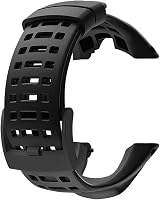
The Picowe strap below is a soft rubber replacement band with a clasp closure and 15 holes for adjustment. It measures 6.85 x 3.74 x 0.63 inches as a package and includes a screwdriver, while the screws are not included.
Picowe describes this strap as compatible with Suunto Ambit models, not with the ScanWatch 2. Measure your watch lugs and check the fit before you order.
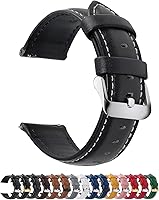
The Fullmosa band below is a genuine leather strap in a 22 mm width, with quick release pins and a spring bar tool in the package. It is 0.16 inches thick and weighs 0.47 ounces.
Fullmosa lists compatibility with several Samsung, Garmin, Huawei, and other watches in its 22 mm size. That list does not name the ScanWatch 2, so treat lug width and pin size as the deciding checks.
What mistakes should you avoid during a ScanWatch 2 update?
Avoid starting an update on a low battery, walking away from your phone, or closing the app mid transfer. Those three habits cause most failed installs.
Do not start an update right before you leave home, exercise, or shower. The watch needs to stay charged and near the phone until it restarts.
Do not pair the watch to a second phone or unpair it during an update. Changing the pairing can strand the firmware on the wrong device.
Do not treat a slow download as a failure too soon. Large files take time, and the watch may pause while it checks the file before installing.
How do you keep future Withings ScanWatch 2 updates smooth?
Keep the app updated, keep the watch charged, and check for firmware after major phone or app changes. Those habits make the next install far less likely to stall.
Turn on app update notifications or check the app store monthly. An old app version can miss new firmware or show the wrong version number.
Keep the spare charging cable in the same place as the watch. If the cable is a 1 m TUSITA spare, store it in a bag or drawer so you can charge at a desk or bedside without hunting for the original.
Check the strap fit each time you change bands for an update. A secure strap keeps the watch from sliding during the transfer and helps sensors track well after the restart.
Frequently asked questions
How long does a Withings ScanWatch 2 update take?
Most firmware installs take a few minutes after the file downloads, but the total time depends on your connection, battery level, and how large the update is. Keep the phone and watch close together, leave the app open, and do not close it or switch the watch off until the watch shows the install is complete.
Why will my Withings ScanWatch 2 not update?
Common causes are a low battery, weak Bluetooth, a closed or outdated app, or an interrupted connection during download or install. Charge the watch, restart the phone and watch, keep them within a few feet, and try again on a stable Wi-Fi or mobile connection.
Can I use my ScanWatch 2 while an update is installing?
It is best to leave the watch still and connected while firmware installs. Wearing it, pressing buttons, or moving away from your phone can increase the chance of an interruption.
Wait for the restart or completion message before you start a workout, ECG reading, or other activity.
What should I do if the update fails at the last step?
Keep the watch charged and near the phone, then close and reopen the app and check for the update again. If the watch looks frozen, follow the reset steps in a separate guide before you try a full factory reset, because a reset can remove settings and stored data.