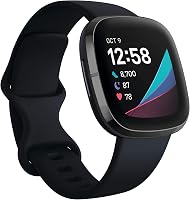
How to Take an ECG on the Google Pixel Watch 4
To take a Google Pixel Watch 4 ECG, open the ECG app, rest your arm, and touch the crown with a finger from your other hand until the recording finishes. Set up the feature in Fitbit first, and review the result in the app afterward.
On this page (10 sections)
- Can you take an ECG on the Google Pixel Watch 4?
- How do you set up the Pixel Watch 4 ECG app?
- How do you record a Google Pixel Watch 4 ECG?
- Where do you find and understand the ECG result?
- Does the Pixel Watch 4 ECG detect every heart rhythm problem?
- Can a band or case affect an ECG reading?
- What should you do if the result says AFib?
- How does Pixel Watch 4 ECG compare with older Pixel Watches?
- Which Pixel Watch items help with ECG use?
- How to take an ECG on Google Pixel Watch 4 safely
To take a Google Pixel Watch 4 ECG, open the ECG app, rest your arm, and touch the crown with a finger from your other hand until the recording ends. Set up ECG in Fitbit first, then review the result in the Fitbit app.
The ECG app records electrical signals from your wrist and can classify some readings as atrial fibrillation (AFib) or normal sinus rhythm. The Pixel Watch heart rate monitor guide covers a separate wrist-based measurement.
It isn't a diagnosis or a substitute for medical care.
Can you take an ECG on the Google Pixel Watch 4?
Yes, the Pixel Watch 4 can record an ECG using its ECG app if the feature is available in your location and your account meets Fitbit's requirements. The reading is a single-lead recording, so it captures less information than a clinical 12-lead ECG.
Google and Fitbit can change setup steps and regional availability. Check Fitbit's ECG app setup and use instructions for current requirements before relying on the feature.
A Pixel Watch ECG is designed to look for signs of AFib and normal sinus rhythm. It doesn't check for every heart rhythm problem, heart attack, or other cause of symptoms.
How does Pixel Watch 4 ECG differ from a medical ECG?
A watch ECG uses one electrical lead, while a clinic ECG usually uses several leads placed on the chest and limbs. The watch can provide a brief recording for personal health information, but a clinician interprets it alongside symptoms and other tests.
Don't use a watch result to delay urgent care. For chest pain, fainting, severe shortness of breath, or other sudden or serious symptoms, contact local emergency services.
How do you set up the Pixel Watch 4 ECG app?
Set up ECG through the Fitbit app on your phone before opening the app on the watch. See the Fitbit Charge 6 ECG setup guide for another device workflow.
Follow the on-screen steps and answer any eligibility questions accurately.
- Update the Fitbit app and Pixel Watch software.
- Open Fitbit on the paired phone and find the ECG setup option.
- Follow the prompts for eligibility, permissions, and any required profile details.
- On the watch, locate and open the ECG app.
- If the app is missing, check regional availability, account requirements, and software updates in Fitbit Help.
Menu names can change with software updates. If a step doesn't match your screen, use Fitbit's current support instructions rather than guessing through account or health settings.
How do you record a Google Pixel Watch 4 ECG?
Sit down, rest your arm, and keep one finger on the crown throughout the recording. A steady position and continuous contact help the watch capture a usable signal.
- Open the ECG app on the watch.
- Sit comfortably and place your forearms on a table or your lap.
- Rest a finger from your opposite hand lightly on the crown.
- Stay still and keep contact until the on-screen countdown or recording ends.
- Review the result on the watch or in the Fitbit app.
Don't press hard on the crown. If the watch asks you to adjust your position or contact, follow its instructions and begin another reading when you're ready.
For more help with steady contact and positioning, see how to take an ECG reading correctly.
What if the ECG recording won't start or finish?
Check that your finger is touching the crown and your arm is supported. Dry skin, motion, or an interrupted touch can make a reading difficult to record.
Try again while seated, with a relaxed hand and the watch snug against your wrist. If the app repeatedly fails, restart the watch, confirm its software is current, and consult Fitbit support.
Where do you find and understand the ECG result?
Open the Fitbit app to review the saved ECG result and its classification. The app may show categories such as AFib, normal sinus rhythm, or an inconclusive result.
A result marked inconclusive doesn't confirm a rhythm problem. It can happen when the signal is unclear, the heart rate is outside the app's classification range, or the reading doesn't fit a supported category.
See how long it takes to get ECG results for what to expect after a recording. Save or share the report with a clinician if you want help interpreting it.
A normal result only describes that short recording. If symptoms continue or return, contact a health professional regardless of what the watch reports.
Does the Pixel Watch 4 ECG detect every heart rhythm problem?
No, the ECG app does not detect every heart condition or rhythm. It looks for specific patterns in a single-lead recording and may not identify other issues.
The watch is not continuously monitoring for AFib through ECG recordings. You need to start a reading yourself, and one recording reflects only that moment.
Don't change medication or treatment based on a watch result. Ask a clinician what the result means for your health and whether further evaluation is needed.
Can a band or case affect an ECG reading?
A snug fit and clear access to the crown matter during a recording. Any band or case should let you position the watch correctly and touch the crown without obstruction.
The Spigen band with case is described for Pixel Watch 5, 4, 3, 2, and 1 in 45/41 mm sizes, but its compatibility details exclude some watch versions. Check the exact watch model and fit before choosing it.
The SUPCASE case includes an adjustable band and is specified for the 41 mm Pixel Watch and Pixel Watch 2. Its raised frame and TPU bumpers add a case around the watch, so make sure the crown remains easy to reach.
For a separate fit decision, read best Google Pixel Watch 2 band options. Water resistance questions are different from ECG use; see is the Google Pixel Watch 2 waterproof for that model.
What should you do if the result says AFib?
Contact a health professional to discuss an AFib result, especially if this is your first abnormal reading or you have symptoms. Fitbit may provide steps to save or share the ECG report.
An AFib classification isn't a diagnosis. A clinician can confirm whether the rhythm is present and decide what evaluation or care is appropriate.
Seek urgent help for severe or sudden symptoms, such as chest pain, fainting, or trouble breathing. Don't wait to take another watch reading first.
How does Pixel Watch 4 ECG compare with older Pixel Watches?
The basic recording approach is similar across supported Pixel Watch models: open ECG, rest your arm, and touch the crown. Setup eligibility and app availability can differ by model, location, and software.
For model-specific steps, read our guides to Google Pixel Watch 3 ECG and Google Pixel Watch 2 ECG. Check Fitbit's current support page if your app screens or setup requirements differ.
Which Pixel Watch items help with ECG use?
Choose accessories based on fit and access to the crown, and use the watch's ECG feature only if it is supported for your account and location. For a related Pixel Watch metric, see Pixel Watch 3 SpO2 tracking.
Accessory compatibility varies by watch generation and size.
This product is a Pixel Watch 5, not the Pixel Watch 4. Confirm the generation, size, and ECG support you need before buying.
If you already have a Pixel Watch 4, no new band or case is required to record an ECG. Use a comfortable fit that leaves the crown accessible, then follow the app's instructions.
How to take an ECG on Google Pixel Watch 4 safely
For a Google Pixel Watch 4 ECG, set up the app in Fitbit, sit still, and keep a finger on the crown through the full recording. Review the classification in Fitbit and treat it as personal health information, not a diagnosis.
If the watch reports AFib or an inconclusive result, ask a clinician what to do next. For ongoing or serious symptoms, seek medical care even when a recording appears normal.
Frequently asked questions
Can the Google Pixel Watch 4 take an ECG?
Yes, the Pixel Watch 4 can record a single-lead ECG with the ECG app in supported locations and with a compatible Fitbit account. Availability and setup requirements can vary, so check Fitbit's current instructions for your country and watch software before relying on the feature.
How do I set up ECG on Pixel Watch 4?
Open the Fitbit app on your phone and follow its setup instructions for the ECG app, including any prompts to confirm eligibility and permissions. Then find the ECG app on the watch.
If it doesn't appear, update the watch and Fitbit app, confirm your location is supported, and check Fitbit Help.
How long does a Pixel Watch ECG take?
A recording generally takes about 30 seconds once you start it and maintain contact with the crown. Keep your arm still and stay seated until the watch completes the reading; movement or a lost contact can affect the result.
Does a normal Pixel Watch ECG rule out a heart problem?
No. A watch ECG is a limited, single-lead recording and cannot rule out every heart condition or replace a clinician's evaluation.
If you have concerning symptoms, seek medical care even if the watch reports a normal result.