How to Connect Your EKG Device to a Smartphone
Most EKG devices connect to smartphones through Bluetooth pairing, downloadable companion apps, or WiFi connections depending on your device model.
The connection process typically takes 2-3 minutes and requires enabling Bluetooth on your phone, downloading the manufacturer’s app, and following the in-app pairing instructions.
Your heart health monitoring just got a whole lot smarter. Connecting your EKG device to your smartphone opens up a world of real-time tracking, data storage, and instant sharing with healthcare providers.
But here’s the thing – every device works a bit differently. What works for your friend’s Apple Watch might not apply to your handheld EKG monitor.
What You Need Before Starting
Let me save you some frustration. Before you start the connection process, make sure you have these basics covered.
Check Your Phone’s Compatibility
Your smartphone needs to support your EKG device. Most modern devices work with iOS 12+ or Android 8+. But some older EKG monitors only work with specific phone models.
I found that checking the manufacturer’s website first saves time. They usually list compatible devices right on the product page.
Download the Right App
Each EKG device has its own companion app. Don’t try using a generic heart monitor app – it won’t work.
Popular EKG device apps include:
- KardiaMobile App for AliveCor devices
- Apple Health for Apple Watch ECG
- Samsung Health for Galaxy Watch
- Omron Connect for Omron EKG devices
Enable Required Permissions
Your EKG app needs several phone permissions to work properly. You’ll typically need to allow:
- Bluetooth access
- Location services (for some devices)
- Health data access
- Camera access (for some setup processes)
Step-by-Step Connection Guide
Ready to connect? Here’s how most EKG devices pair with smartphones. I’ve broken this down into simple steps that work for most brands.
Step 1: Prepare Your EKG Device
First, make sure your EKG device is charged and turned on. Most devices show a battery indicator or power light when ready.
Some devices enter pairing mode automatically when first powered on. Others need you to hold a specific button combination.
Common Pairing Mode Triggers
- Hold power button for 3-5 seconds
- Press and hold both side buttons simultaneously
- Triple-tap the main button
Look for a blinking blue light or “pairing” message on your device’s screen. This tells you it’s ready to connect.
Step 2: Enable Bluetooth on Your Phone
Go to your phone’s Settings and turn on Bluetooth. Make sure your phone is discoverable – this usually happens automatically when Bluetooth is on.
Keep your phone within 3 feet of your EKG device during pairing. Bluetooth connections work best at close range.
Step 3: Open Your EKG App
Launch the companion app you downloaded earlier. Most apps will automatically search for nearby EKG devices when you open them for the first time.
If the app doesn’t find your device right away, look for a “Add Device” or “Pair New Device” button.
Troubleshooting App Detection
Device not showing up? Try these quick fixes:
- Close and reopen the app
- Turn your EKG device off and on again
- Make sure no other devices are trying to connect
- Check that your device is still in pairing mode
Step 4: Complete the Pairing Process
When your app finds the EKG device, tap on its name to start pairing. You might see a confirmation code on both your phone and EKG device – make sure these match.
Some devices require you to confirm the pairing on both the phone app and the EKG device itself. Just follow the on-screen prompts.
Device-Specific Connection Instructions
Different EKG brands have their own quirks. Here’s what I found works best for popular devices.
Apple Watch EKG Connection
Apple Watch EKG setup is pretty straightforward since it uses the existing Watch app.
Open the Apple Watch app on your iPhone and look for the ECG app option. You’ll need to complete a health questionnaire before using the EKG feature.
The setup walks you through placing your finger on the Digital Crown while wearing the watch. This calibrates the sensors for your specific heart rhythm.
AliveCor KardiaMobile Connection
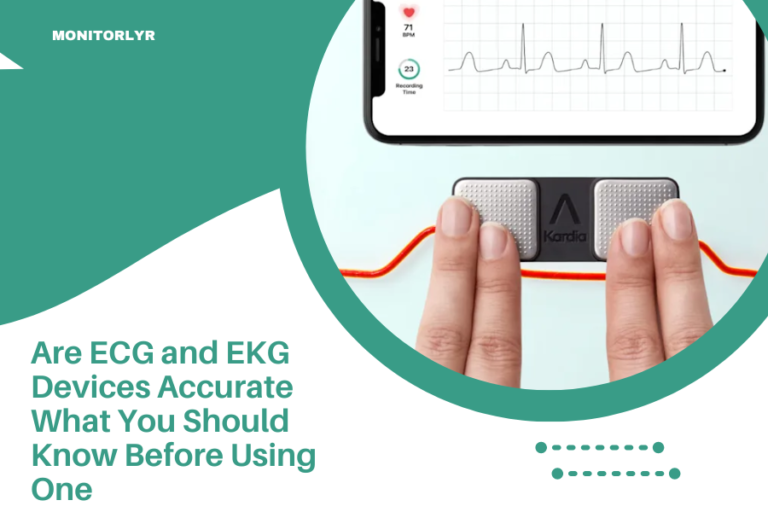
KardiaMobile devices connect through the Kardia app. These handheld devices pair quickly once you create your Kardia account.
Place the device near your phone and open the app. The app will detect the device automatically when you take your first EKG reading.
Samsung Galaxy Watch EKG Setup
Samsung’s EKG feature requires both the Galaxy Watch app and Samsung Health app installed on your phone.
You’ll need to complete identity verification through Samsung Health before accessing EKG features. This includes agreeing to health monitoring terms.
WiFi-Enabled EKG Devices
Some newer EKG monitors connect through WiFi instead of Bluetooth. These devices often sync data automatically to cloud storage.
Setting Up WiFi EKG Connections
WiFi setup usually happens through the companion app. You’ll enter your home WiFi password, and the device stores this information for future connections.
WiFi connections work better for continuous monitoring devices that need to upload large amounts of data regularly.
Benefits of WiFi vs Bluetooth
| Connection Type | Range | Battery Impact | Data Transfer |
|---|---|---|---|
| Bluetooth | 30 feet | Low | Real-time |
| WiFi | 100+ feet | Higher | Batch upload |
Common Connection Problems
Even with perfect instructions, things sometimes go wrong. Here are the most common issues I hear about and how to fix them.
Device Won’t Appear in App
This happens more often than you’d think. The device is on, Bluetooth is working, but nothing shows up in your app.
Try restarting both your phone and EKG device. Sometimes they just need a fresh start to see each other.
Also check if other Bluetooth devices are connected to your phone. Some phones have limits on simultaneous connections.
Connection Keeps Dropping
Intermittent connections are usually distance or interference problems. Keep your phone close to your EKG device during readings.
Other wireless devices can interfere with Bluetooth signals. Try moving away from WiFi routers, microwaves, or other medical devices.
App Crashes During Setup
App crashes often mean you need an update. Check your phone’s app store for the latest version of your EKG app.
If the app is current, try clearing the app’s cache or reinstalling it completely.
Optimizing Your Connection
Once connected, you want your EKG device to work reliably every time you need it.
Keep Software Updated
Both your phone’s operating system and the EKG app need regular updates. These updates often fix connection bugs and add new features.
Many EKG devices also receive firmware updates through their companion apps. Don’t skip these – they often improve battery life and connection stability.
Manage Background Apps
Too many apps running in the background can interfere with Bluetooth connections. Close apps you’re not using before taking EKG readings.
Some phones have battery optimization settings that can interfere with health apps. Add your EKG app to the “never optimize” list if your phone has this option.
Data Sync and Storage
Your EKG readings need somewhere to go after they’re recorded. Most apps handle this automatically, but it’s good to understand how it works.
Automatic Cloud Backup
Many EKG apps automatically back up your readings to cloud storage. This protects your data if something happens to your phone.
Check your app’s privacy settings to see where your data goes. Some apps let you choose between local storage only or cloud backup.
Sharing with Healthcare Providers
Most EKG apps can export readings as PDF files or share them directly with your doctor’s office.
Some apps integrate with electronic health records systems. Ask your healthcare provider if they can receive data directly from your EKG app.
Security and Privacy Considerations
Your heart data is personal health information. Make sure your EKG device connection is secure.
Bluetooth Security
Modern EKG devices use encrypted Bluetooth connections. But you should still be careful about where you pair your device.
Only pair your EKG device in private locations. Public places with many Bluetooth devices can be less secure.
App Permissions Review
Regularly review what permissions your EKG app has access to. Remove any permissions that seem unnecessary for basic functionality.
Some apps request access to contacts, photos, or other data they don’t really need for EKG monitoring.
Advanced Connection Features
Once you’ve mastered basic connectivity, some EKG devices offer advanced features worth exploring.
Multiple Device Pairing
Some EKG apps can connect to multiple devices simultaneously. This works well for households where several people use EKG monitoring.
Each family member can have their own profile within the same app, with data kept separate automatically.
Third-Party App Integration
Many EKG devices can share data with other health apps like Apple Health, Google Fit, or MyFitnessPal.
This integration gives you a more complete picture of your health data in one place.
Maintaining Your Connection
A good EKG device connection needs occasional maintenance to keep working smoothly.
Regular Connection Testing
Test your EKG device connection weekly, even if you don’t need a reading. This helps you catch problems before you really need the device.
Many apps have a “connection test” feature that checks communication without taking a full EKG reading.
Battery Management
Low battery levels can cause connection problems before your device actually dies. Charge your EKG device regularly.
Some devices show battery status in the companion app. Check this periodically so you’re not caught off guard.
When to Contact Support
Sometimes you need help from the professionals. Here’s when to reach out to technical support.
Persistent Connection Failures
If you’ve tried all the basic troubleshooting steps and your device still won’t connect, contact the manufacturer’s support team.
Most EKG device companies have dedicated health device support lines with specialists who understand medical device connectivity.
App-Specific Issues
Problems that only happen with one specific app might be software bugs that need developer attention.
Before calling support, note exactly when the problem happens and what error messages you see. This helps support staff diagnose issues faster.
Conclusion
Connecting your EKG device to your smartphone transforms a simple medical device into a powerful health monitoring system. The process might seem technical at first, but most connections take just a few minutes once you know the steps.
Remember that every device is slightly different, so don’t get frustrated if the first attempt doesn’t work perfectly. With a little patience and the right approach, you’ll have reliable heart monitoring data right at your fingertips.
The key is preparation – having the right app, checking compatibility, and understanding your specific device’s requirements before you start. Once connected, regular maintenance and updates keep everything running smoothly for years of reliable heart health monitoring.
Can I connect multiple EKG devices to the same smartphone?
Yes, most smartphones can pair with multiple EKG devices, but you can typically only use one device at a time within each app. Some apps support multiple user profiles for families sharing devices.
What happens if my phone’s Bluetooth stops working with my EKG device?
First try restarting both devices and re-pairing them. If problems persist, check for app updates or contact the manufacturer’s support team, as this could indicate a hardware compatibility issue.
Do EKG devices work with older smartphones?
Most EKG devices require relatively recent phone operating systems – typically iOS 12+ or Android 8+. Very old phones might not have the Bluetooth protocols needed for modern medical devices.
Can I use my EKG device without connecting it to my phone?
Some EKG devices can store readings in internal memory without a phone connection, but you’ll miss features like data analysis, cloud backup, and easy sharing with healthcare providers.
Is it safe to leave my EKG device connected to my phone all the time?
Yes, maintaining a constant Bluetooth connection is safe and uses minimal battery power on both devices. This allows for automatic data sync and ensures your device is ready when needed.